What to expect
Image to layers means rebuilding visible elements of one flat picture as independently editable raster layers. Png2Psd accepts JPG, PNG and WebP, uses AI to separate visual elements, and exports a PSD. It creates new layers; it does not recover a hidden original Photoshop document.
Choose layer separation, not just a file conversion
Renaming a PNG to .psd or saving a JPEG as PSD usually leaves one merged layer. Background removal normally produces one subject cutout. Layer separation is useful when you need several elements that can be moved or hidden independently.
From image file to layer editing
After processing, open the result or browser editor. You can inspect and hide layers, rename them, rearrange the stack in the editor, and adjust position, size, rotation and opacity. This edits raster content rather than restoring vector paths or editable font text.
Extract image assets as separate PNGs in one ZIP
To reuse several objects from one JPG, PNG or WebP, run layer separation, inspect each generated layer, and choose the PNG layer ZIP from the result page. You can also download one layer at a time or export a PSD for its layer stack. The ZIP contains the visible layers from that completed task; it is not a batch converter for multiple source files. Compare edges and details with the original before placing the assets in a new design.
When to choose AI separation or manual cutting
AI separation can provide an editable starting point when a flat composition has several visible objects. Manual cutting is more appropriate when exact contours, fine lettering or animation-specific parts matter. Start with a small set of named objects, inspect the returned raster layers, and finish precise masks in a suitable image editor. Do not assume every gradient, shadow or overlapping object becomes a separate layer.
Practical tips
- Separate visible objects for your next composition rather than just changing the file extension
- Use a clear source with at least 262,144 total pixels and a file size of 30 MB or less
- Name the subject, background and secondary objects in the optional prompt
- Review generated details and overlaps; reconstructed pixels can differ from the original
How it works
- 1Sign in and upload your image
- 2Describe the visual objects you want separated
- 3Inspect the returned layers and their alignment
- 4Edit the raster layers or export PSD and PNG layers
See what AI layer separation produces
Real results from self-owned images. Compare the source with individual layers before trying your own picture.
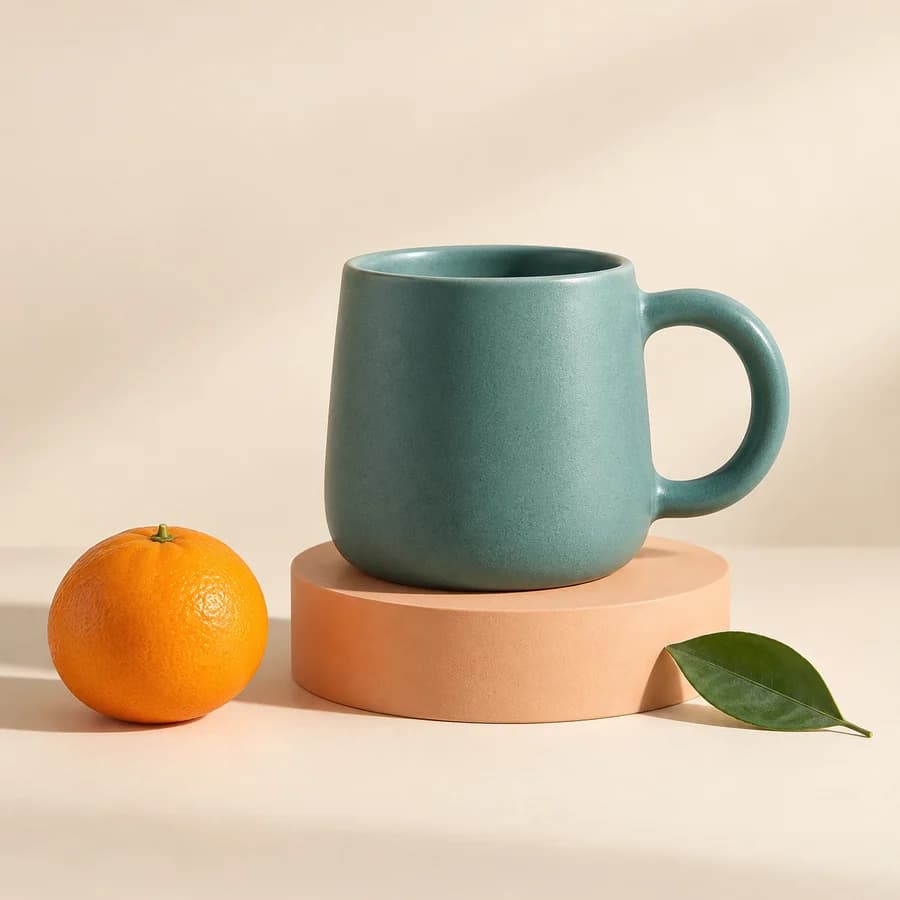
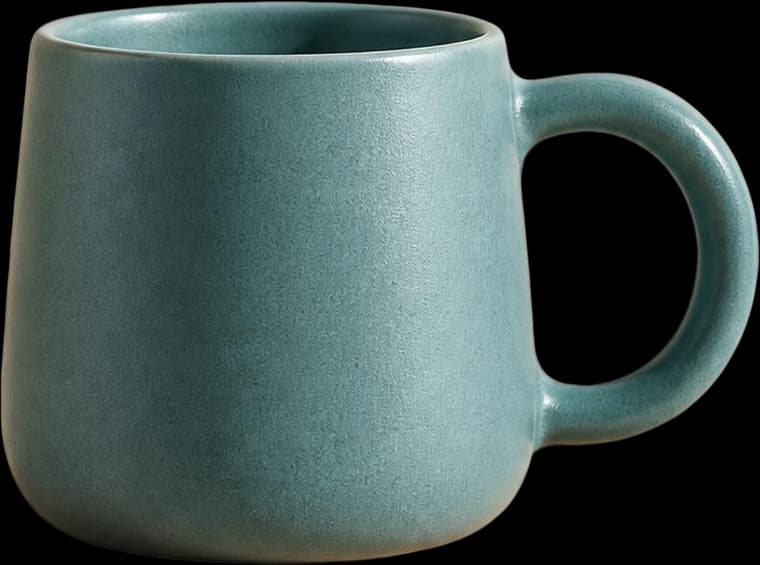
A ceramic mug, orange, leaf and plinth separated for a product composition. Inspect transparency and the reconstructed plinth edge.
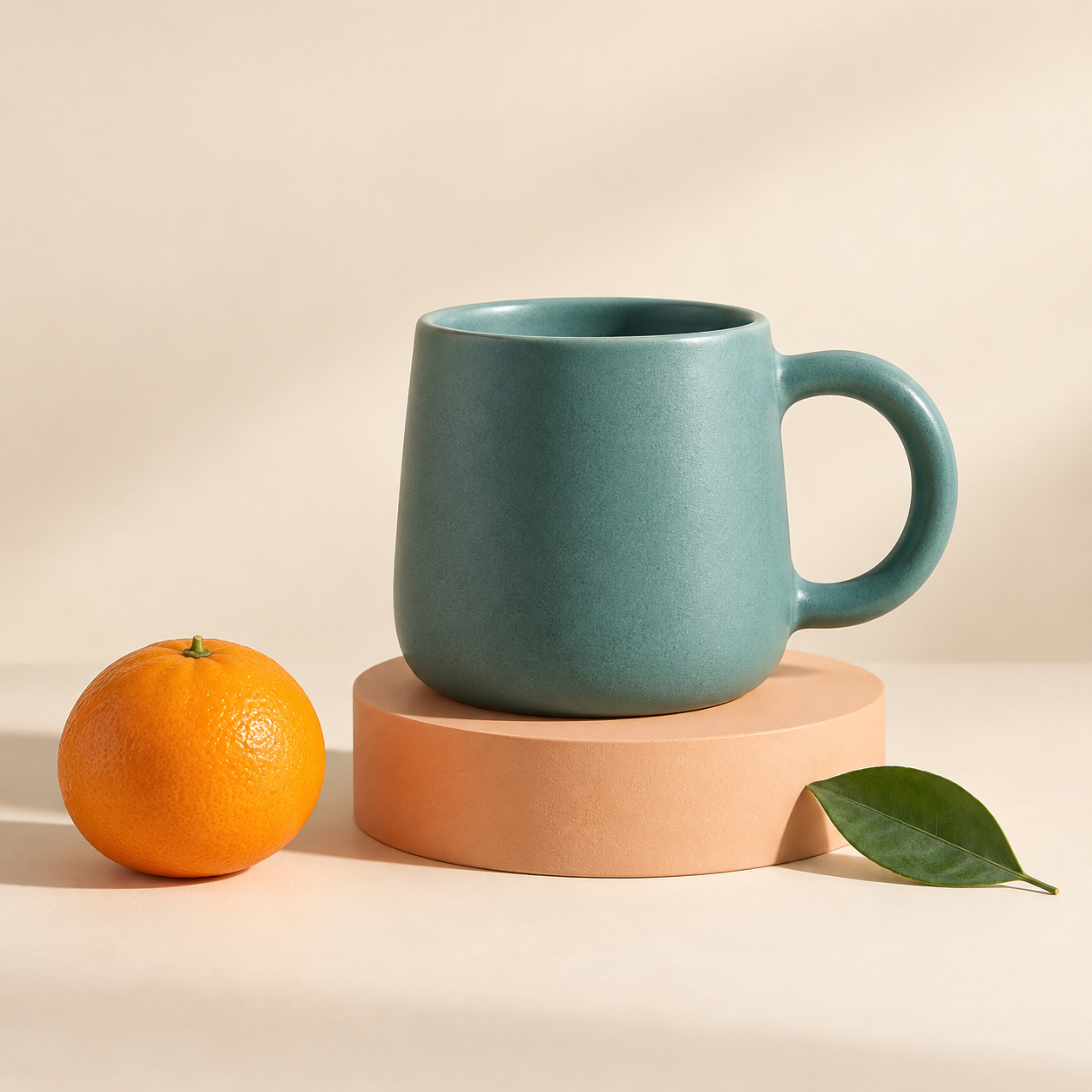
These are actual AI results, not guaranteed outcomes. Details can change; a base image may still contain objects. Moving a layer can require cleanup. The character example is not a Live2D rig.
Frequently asked questions
How do I turn an image into layers online?
Upload a supported flat image, describe the objects you want isolated, run separation, and inspect the output. Download the PSD for further editing. An account and sufficient credits are required to run a task.
Can an image-to-layer tool recover the original layers?
No. A flattened JPG or PNG does not retain the original layer stack. AI can infer visible objects and reconstruct pixels, but cannot recover the original fonts, vectors, masks or adjustment layers.
What is the difference between image to layer and image to layers?
Both search phrases often refer to separating an image into independently editable pieces. If you only want one transparent subject, background removal may be enough; multiple objects call for layer separation.
Can I edit an image file layer by layer?
Yes, after separation you can edit the new raster layers independently in the browser editor or a compatible PSD editor. Check edges and reconstructed areas before using the result.
Should I choose an image layer separator or a background remover?
Choose a cutout when only one subject is needed. Choose image layer separation when several visible elements must be moved or hidden independently and exported as PSD. In either case, inspect edges and hidden areas; a transparent subject alone does not provide a reconstructed clean background.
Can I extract assets from a photo as PNG files in a ZIP?
Yes. For a completed layer-separation task, use the PNG layer ZIP on the result page or download individual generated layers. Upload JPG/JPEG, PNG or WebP, sign in and use available credits. The ZIP packages visible returned layers from one task, not multiple input photos; hidden layers are excluded.
How does AI image-to-layers compare with manually cutting objects?
AI attempts to infer separate raster elements and can reduce the initial setup. Manual cutting gives you direct control over the selected pixels. Use manual refinement for exact masks, fine text, gradients and covered areas; neither approach can retrieve original layers from a flattened file.