What to expect
Photo to PSD separation creates new raster layers for visible subjects, objects and backgrounds in a JPG, PNG or WebP photograph. Png2Psd can provide a starting point for composition edits; it does not recover a camera RAW file, original retouching layers or the exact scene behind an object.
Product photography and composition changes
Separating a product, plinth and decoration can make a new layout easier to assemble. The public product case shows actual output you can inspect. A base layer may still contain the product; moving it can reveal duplicates or unfinished areas that require retouching.
Portraits and background replacement
Subject separation can help prepare a portrait for a different background. Flyaway hair, transparent clothing, eyeglasses and out-of-focus edges are difficult cases. AI can alter facial details or invent hidden pixels, so review likeness and consent before using a person's image.
Preserve your photographic source
Keep the original photo and use a RAW editor for exposure, lens corrections or photographic color work. A layered PSD organizes the reconstructed raster result; it is not a guarantee of sharper detail, accurate color or higher resolution.
A focused prompt for a product photo
For a composition like the public sample, try: Separate the ceramic mug, orange, leaf and plinth; keep their original positions. Begin with the objects required for your next layout. Inspect the base/reference image as well as each isolated layer. The five-layer sample does not validate an independently separated shadow or unchanged label text; specify those needs and inspect the actual output before planning a production edit.
Practical tips
- Choose a sharp authorized original rather than a messaging-app screenshot
- Name the person or product and any supporting objects in your prompt
- Inspect hair, glass, reflections, soft shadows and overlapping objects
- Compare faces, labels and product geometry with the original before publishing
How it works
- 1Choose a clear photo in JPG, PNG or WebP
- 2Describe the subject, background and props to separate
- 3Review each layer and compare it with the source photo
- 4Download the PSD and refine masks and reconstructed areas in an editor
See what AI layer separation produces
Real results from self-owned images. Compare the source with individual layers before trying your own picture.
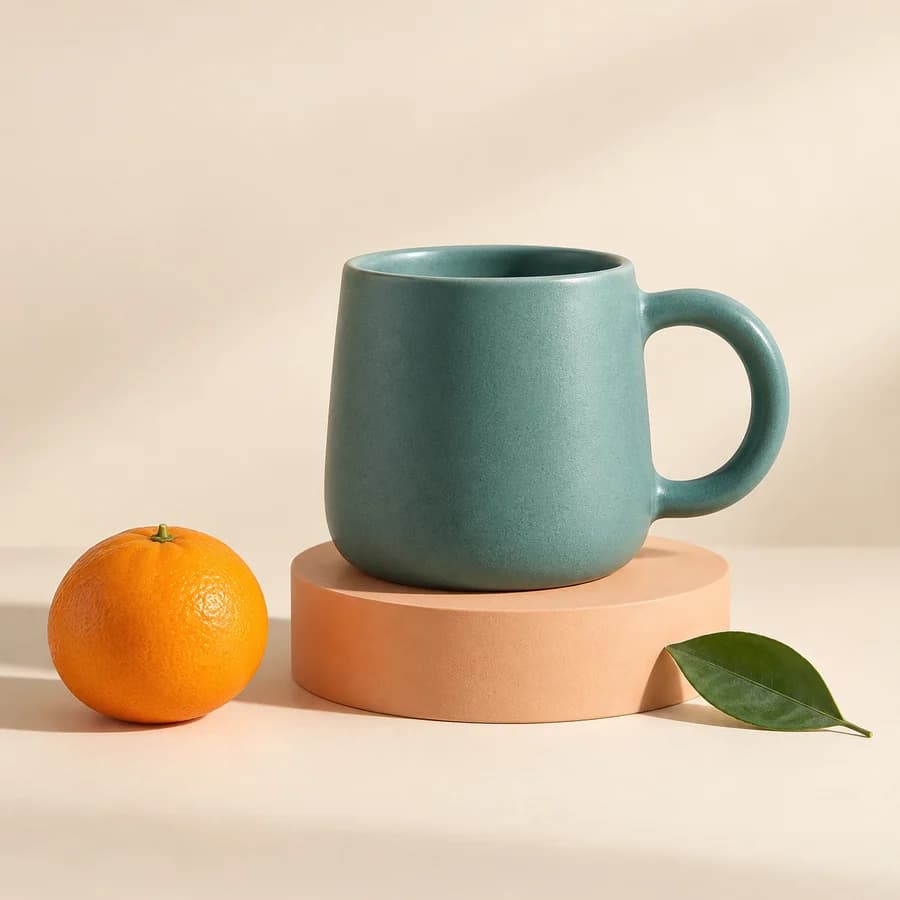
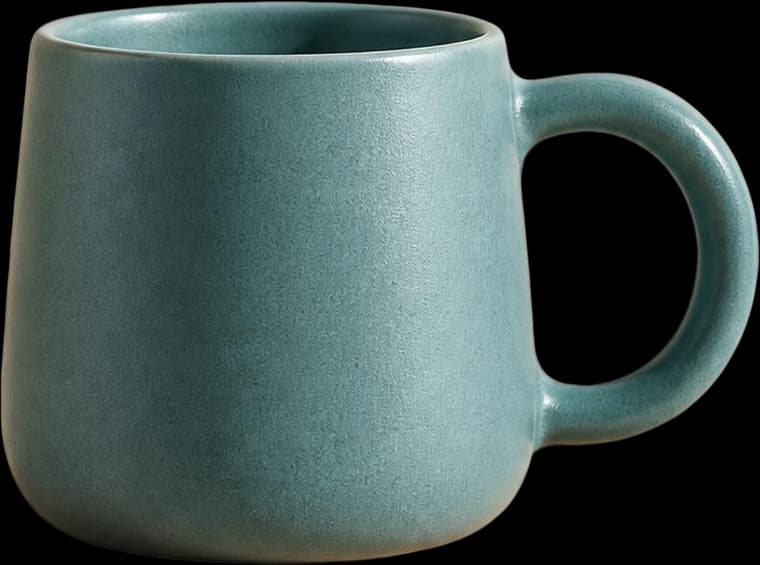
A ceramic mug, orange, leaf and plinth separated for a product composition. Inspect transparency and the reconstructed plinth edge.
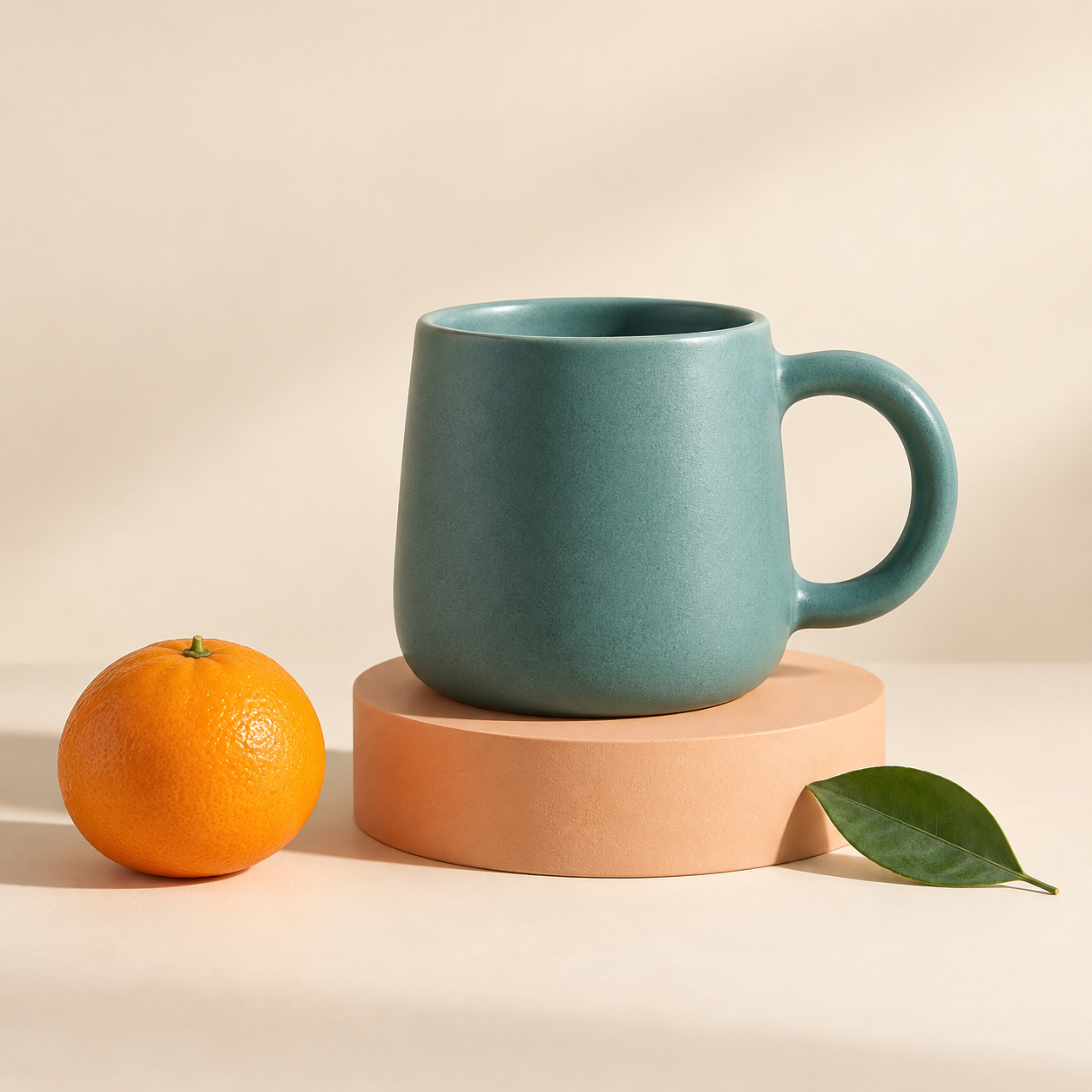
These are actual AI results, not guaranteed outcomes. Details can change; a base image may still contain objects. Moving a layer can require cleanup. The character example is not a Live2D rig.
Frequently asked questions
Can AI split a photograph into Photoshop layers?
AI can infer visible regions and create independently editable raster layers. Results vary with the photo, especially at fine edges and occlusions. This does not recover original retouching layers.
Can I replace a photo background without any cleanup?
Cleanup may be necessary. The background can contain gaps, duplicated subjects or generated detail, and hair or translucent edges may need mask refinement.
Can I upload RAW or HEIC photos directly?
This workflow accepts JPG/JPEG, PNG and WebP. Export other formats to a supported still-image format first, keeping the original source and checking orientation and color.
Can I separate a product and its shadow into editable layers?
You can request separate product and shadow elements, but that request does not guarantee a clean independent shadow layer. Inspect the returned alpha, geometry and base image. The public product example demonstrates object separation rather than a verified shadow-separation benchmark.