What to expect
To edit an image file layer by layer, first create separate raster layers from the flat source. In Png2Psd's browser editor you can select layers, adjust visibility and stacking order, rename them, and change position, scale, rotation and opacity. Export the PSD when the composition is ready.
Why a JPG or PNG cannot be edited as original design layers
The pixels in a flat file are merged. Before separation, an image editor sees one picture. AI creates new pieces that you can adjust individually, but the edges and covered areas may need corrections.
Editing without losing context
Compare the complete composition while inspecting each layer separately. Moving an object may expose its old location in the base image. Check backgrounds and shadows, then correct leftover pixels or missing regions in a raster editor.
Choose a PSD stack or separate PNG assets
Use PSD when you want to continue editing the raster stack in a compatible editor. For reusable individual elements from a completed separation task, the result page offers individual PNG downloads and a PNG layer ZIP. These downloads are not a spritesheet, a sequence of animation frames or SVG paths. This workflow starts from a supported flat image; it is not an uploader for arbitrary PSD documents.
Practical tips
- Changing one layer's visibility is different from removing it from the source image
- Keep a copy of the original before changing the composition
- PSD export preserves the current raster composition; font text and vectors are not restored
- Use a dedicated image editor for precise mask work, colour correction and complex retouching
How it works
- 1Generate layers from the original image
- 2Open the browser editor from the task result
- 3Select and adjust one layer at a time
- 4Check stacking, visibility and alignment
- 5Export PSD for further raster editing
See what AI layer separation produces
Real results from self-owned images. Compare the source with individual layers before trying your own picture.

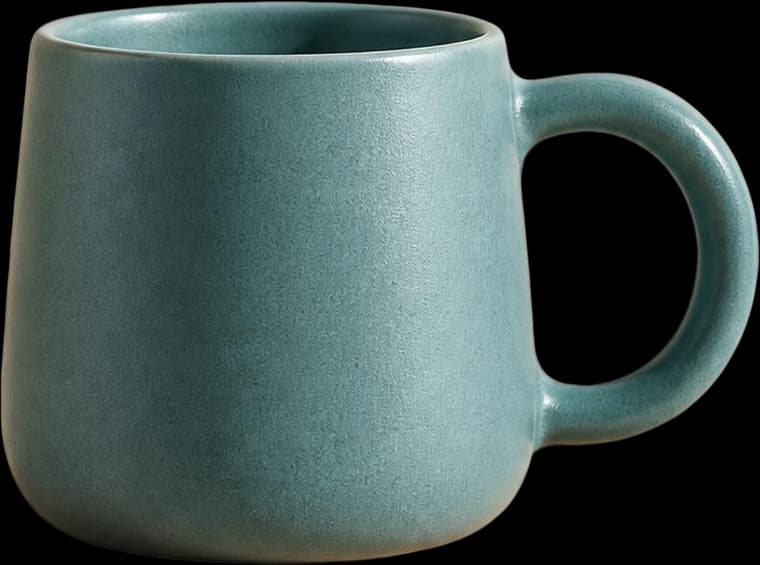
A ceramic mug, orange, leaf and plinth separated for a product composition. Inspect transparency and the reconstructed plinth edge.
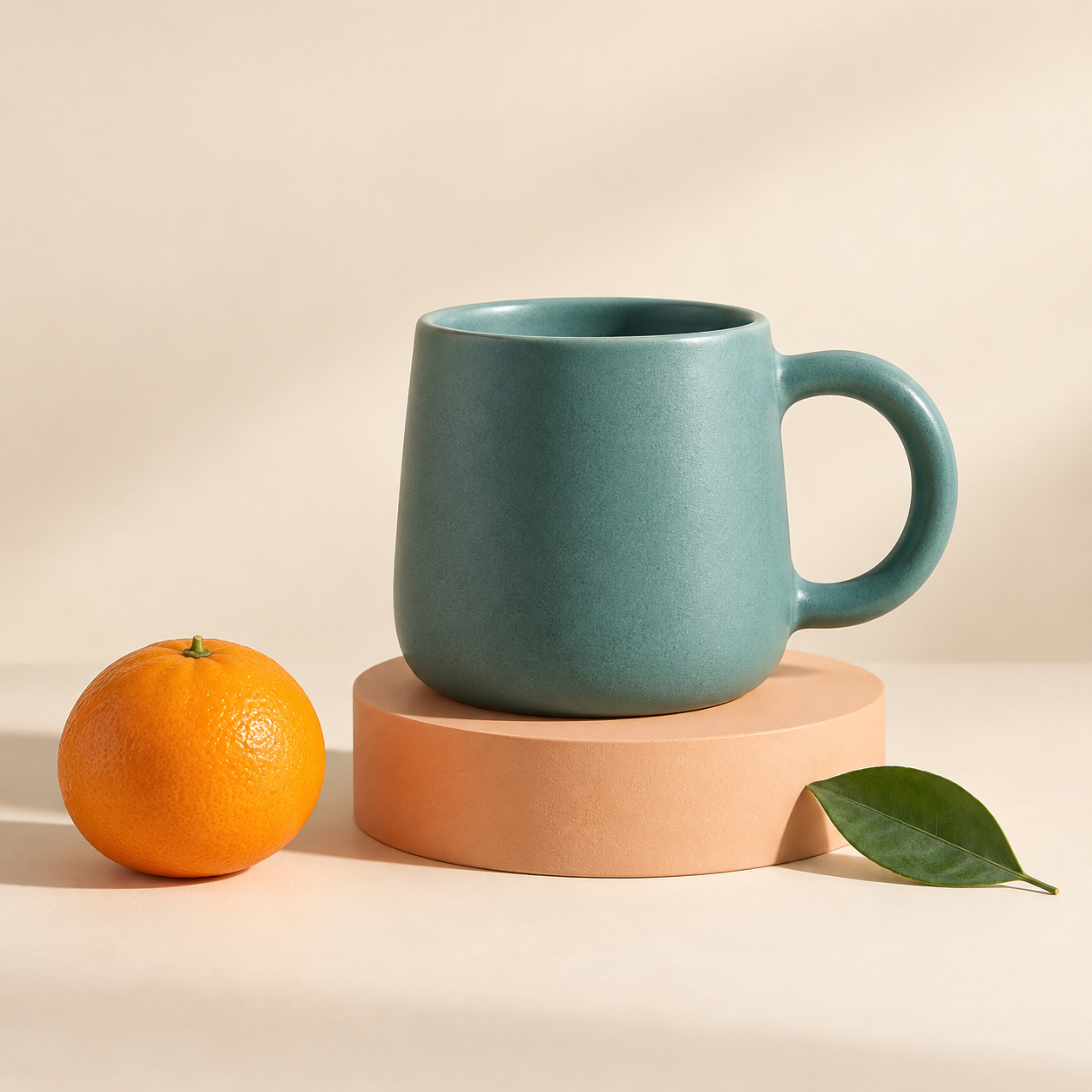
These are actual AI results, not guaranteed outcomes. Details can change; a base image may still contain objects. Moving a layer can require cleanup. The character example is not a Live2D rig.
Frequently asked questions
How do I edit an image file layer by layer?
Separate visible elements into new raster layers, open the editor, select a layer and adjust its properties. A flattened JPG or PNG cannot provide the original source-layer structure.
Can I move one object without changing the others?
You can move a returned layer independently. Inspect its former position and covered areas: the base image may retain duplicated content or require filling.
Can I reorder and rename image layers online?
Yes. Use the browser editor to rename layers and rearrange the stack, then check the exported composition.
Is an image file layer editor a replacement for Photoshop?
It supports separation and basic raster-layer composition. Detailed retouching, advanced masks, source-file recovery and vector workflows still require suitable editing tools.
Can I upload an existing PSD and export all its layers as PNGs?
This workflow accepts JPG/JPEG, PNG and WebP input, not existing PSD documents. It exports PNG layers or a layer ZIP generated from a completed Png2Psd separation task. Use a PSD-capable editor for an existing document.
How do I fix merged shadows or highlights after AI layer separation?
Inspect the actual output first: shading may be part of an object rather than its own layer. You can request a more specific separation in a new task, but independent shading is not guaranteed. Refine the masks or recreate the required shading in a suitable image editor, checking the full composition before export.