01
Upload your image
Choose a supported image and preserve its original composition.
 Png2Psd
Turn a JPG, PNG, JPEG or WebP image into a Photoshop document with transparent, editable layers.
Real results from self-owned images. Compare the source with individual layers before trying your own picture.
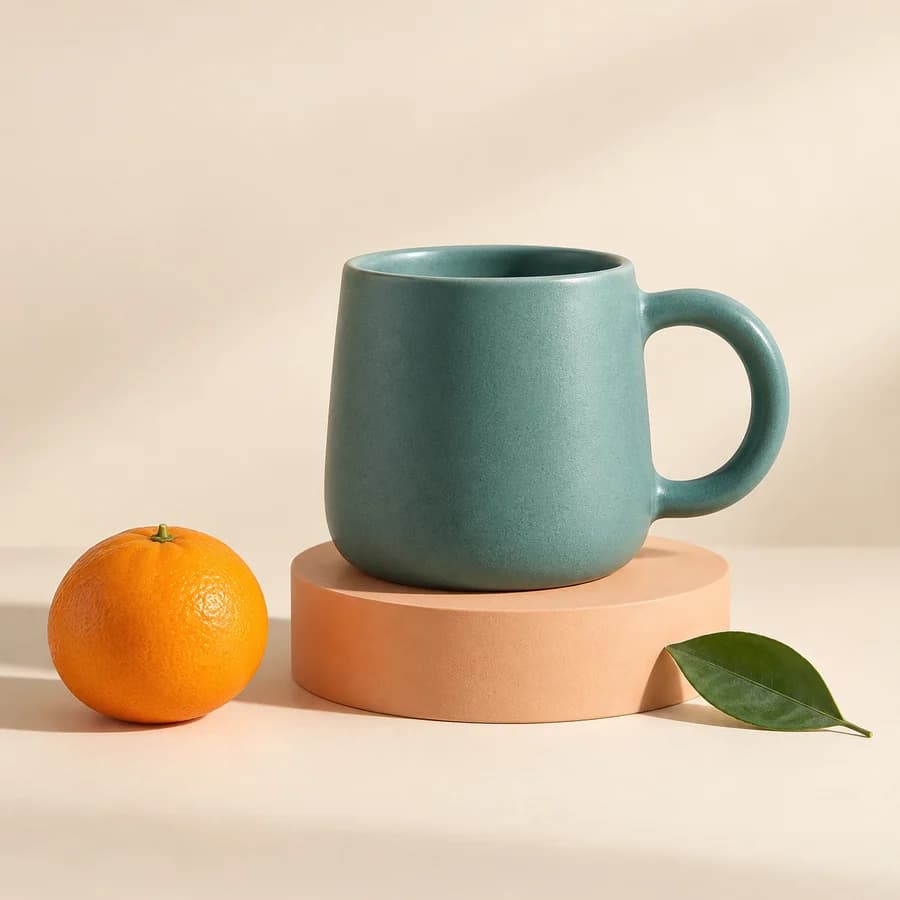
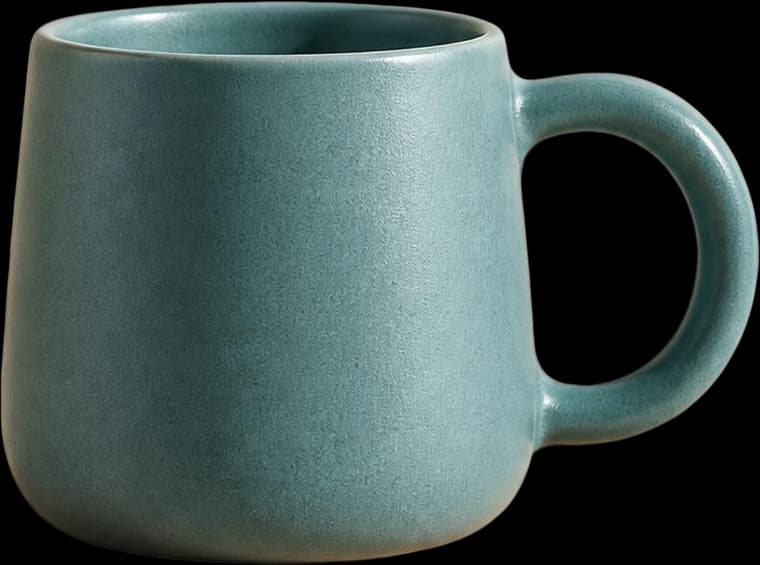
A ceramic mug, orange, leaf and plinth separated for a product composition. Inspect transparency and the reconstructed plinth edge.
These are actual AI results, not guaranteed outcomes. Details can change; a base image may still contain objects. Moving a layer can require cleanup. The character example is not a Live2D rig.
Upload once, let the model identify the main elements, then make quick layer adjustments before downloading.
Choose a supported image and preserve its original composition.
Seedream identifies the base and main elements, returning transparent layers.
Preview, hide or reorder layers, then download a PSD ready for Photoshop.
AI generates raster layers. It does not recover original text, vector or adjustment layers. Review the result before production use.
Find the right workflow for PNG transparency, JPG photos and layered PSD editing.
Try the workflow first, then choose a credit pack for your next projects. All prices are in USD. Start with 50 free credits · One grant per new account; no credit card needed. Signup credits do not expire.
Or up to 5 extractions
One signup grant; credits do not expire. Usage depends on resolution and output layers.
At standard resolution: about 50 images, or $0.20 per image. Actual usage depends on output layers and resolution.
At standard resolution: about 190 images, or $0.16 per image. Actual usage depends on output layers and resolution.
At standard resolution: about 400 images, or $0.15 per image. Actual usage depends on output layers and resolution.
Credits are deducted after successful PSD generation. Failed tasks do not consume credits.
Estimate your credit usage →Learn how to split an image into layers, convert PNG or JPG to PSD, and work with Figma or Canva exports. Practical answers on quality, credits, privacy and limitations.
A PSD is Adobe Photoshop's native document format. A flat PSD contains a single merged image layer: opening it gives you one picture and nothing to rearrange. A layered PSD stores each element on its own named layer with its own transparency mask, so text, subjects, shadows and backgrounds can be selected and edited individually. Both files look identical on screen when opened. The difference only appears when you try to change something — a flat PSD forces you to repaint, a layered PSD lets you move the piece.
Yes, with limits. Modern layer-decomposition models analyse the image for distinct visual regions — foreground subject, background plane, typography, logos, product areas — and output each as a separate RGBA layer with its own alpha mask. Results are strongest on images with clear separation and distinct elements: product shots, posters, flyers, UI screenshots, AI-generated art. They degrade on heavy visual clutter, very soft focus, or when two elements share identical colour and texture. Treat the output as a strong first pass you refine, not as a perfect reconstruction.
PNG, JPG/JPEG and WebP are accepted, up to 30 MB per file and at least 262,144 total pixels. Rasterise SVG, PDF or AI in another editor first. Separation produces raster layers, not original vector or font objects.
Upload a PNG, JPG/JPEG or WebP (up to 30 MB and at least 262,144 pixels in total), describe the elements you want separated, and optionally mark important regions. After processing, inspect the layers and export a layered PSD or individual PNGs. The result contains reconstructed raster layers; original fonts, vectors and hidden details are not recovered exactly, and processing time varies.
New accounts receive 50 signup credits without a credit card. Successful generation consumes credits based on actual output layers and input pixel count; failed tasks do not consume credits. There is no separate guaranteed free-tier layer count or output resolution. Try your own image and inspect the result before purchasing more credits.
No. A merged JPG or PNG does not store its source layer structure. AI creates new raster layers from visible content. Fonts, vectors and original masks cannot be recovered, and a base image may still contain objects that need manual cleanup after moving a layer.
No. Credits are deducted after successful PSD generation, even if you do not download it. Failed tasks do not consume credits.
No. These are one-time credit packs. Purchased credits expire after six months; signup credits do not expire.
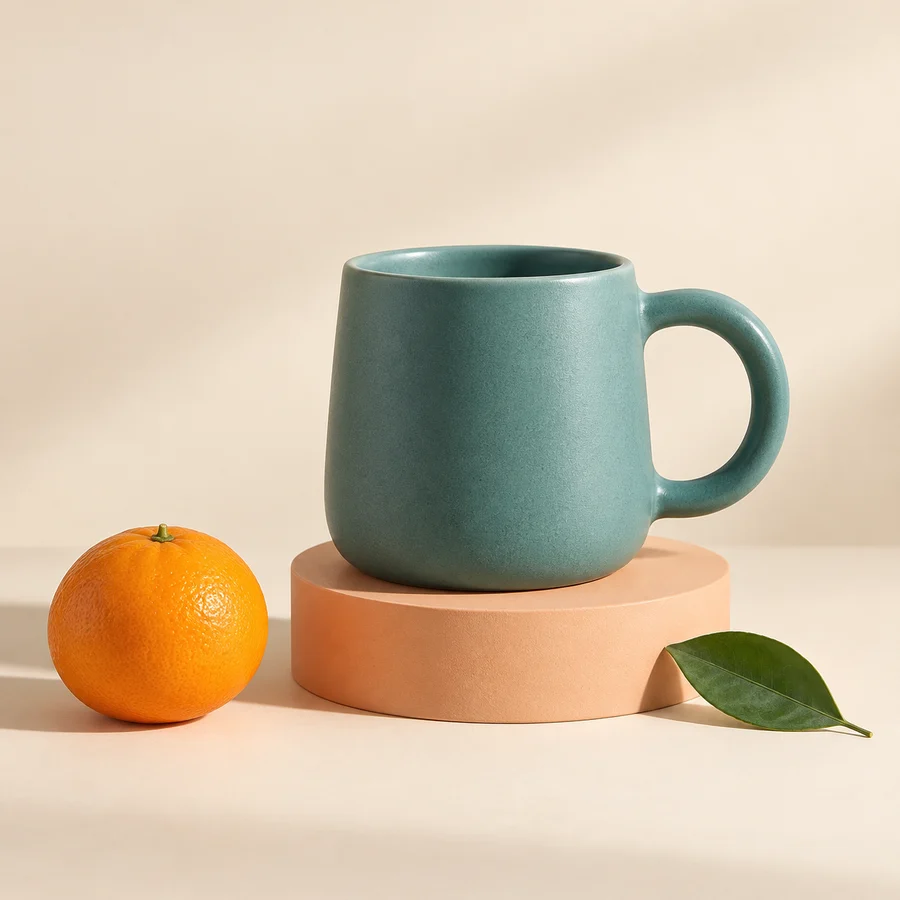 Original
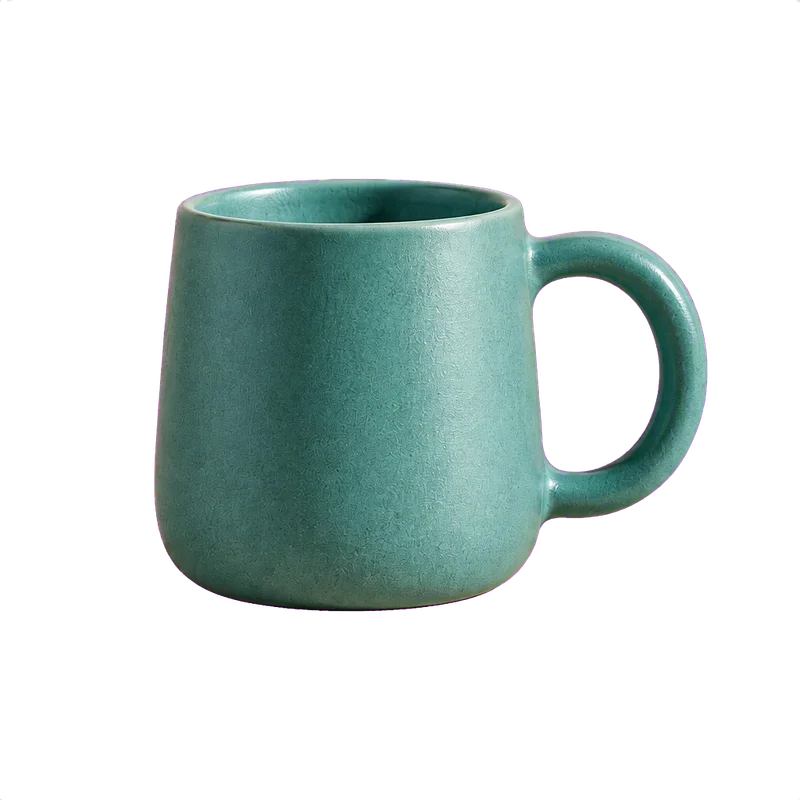 Extracted image
Upload an image and describe what to extract. Compare the result with the original, then download the PNG.
10 credits per successful result · failures use no credits
50 free signup credits · No credit card · Failed tasks use no credits
Your image and description are sent to the AI service to extract your selection.
JPG, JPEG, PNG or WebP · up to 30 MB
50 free signup credits · No credit card · Failed tasks use no credits