What to expect
Use a cutout when you only need one subject to place on another background. Use layer separation when a product, props and background need independent edits in a layered PSD. Png2Psd provides Prompt Cutout for a selected object and Image to Layers for a raster layer stack. Neither workflow recovers the original design file or guarantees unchanged hidden pixels.
Start with the next edit you need to make
Choose based on the editing task rather than the file extension. If you only need to place a mug on a new backdrop, extracting that mug may be sufficient. If the mug, leaf, orange and display plinth must be moved independently, ask for several layers. A PNG can contain transparency without storing any separate design layers; saving that same PNG as PSD does not automatically separate its objects.
What each Png2Psd workflow returns
Prompt Cutout returns one PNG for the object described in your request. It does not return a PSD stack or a matching clean background. Image to Layers produces inferred raster layers that can be inspected and exported as PSD or individual PNG layers. Both use AI, so fine lettering, product labels, edges and small details can change. An exported PSD contains raster elements, not recovered font or vector objects.
A cutout is different from a reconstructed background
Removing the background around a subject and reconstructing the scene behind that subject are different tasks. A transparent foreground alone does not reveal what was originally hidden. In a separated composition, the base image may still contain the foreground object. Moving it can reveal duplicated content, gaps or generated texture. Inspect the entire composition after moving a layer; neither a PSD extension nor a successful task proves that the hidden background is accurate.
Write a prompt for one result or for several layers
For one object, try: Keep only the teal ceramic mug, including its handle. For a layered composition, try: Separate the ceramic mug, orange, leaf and plinth into individual layers; preserve their positions. These are requests to guide processing, not guaranteed output specifications. Start with the few elements needed for your edit and review the actual result instead of assuming that every named detail becomes an independent layer.
Compare the real sample before processing your own image
The product example below has a self-owned original and five actual output layers. Inspect the isolated mug, orange, leaf and plinth, then compare the base/reference layer. The sample demonstrates object separation; it does not establish a separate clean shadow layer or flawless removal from the base. Public samples can be inspected and downloaded without an account. Processing your own image requires sign-in and sufficient credits.
Check the output against your intended use
Inspect the object on both light and dark backgrounds, check missing parts and halos, and compare labels and geometry with the original. If you plan to move objects, also inspect their old positions in the base layer. Prompt Cutout can return an opaque PNG, which the interface flags. Download and inspect your final composition before using it in a product listing, advertisement or animation preparation workflow.
Compare credit use without assuming a fixed image allowance
Prompt Cutout costs 10 credits for each successful extraction. Layer separation costs 2 credits per output layer up to 2,610,000 input pixels, or 4 credits per layer above that threshold. New accounts receive 50 signup credits once. Both workflows require sign-in; failed tasks do not consume generation credits. Use the pricing calculator for the current rules rather than treating one image as a fixed credit cost.
Practical tips
- One product for a catalogue image: consider a single cutout and inspect its alpha channel
- A product, orange, leaf and plinth that need separate positioning: choose layer separation
- Only need the original flat picture inside a PSD: a normal image editor may be enough
- Need editable font text, vector paths or a Live2D rig: preserve the source file or prepare those parts manually
How it works
- 1Decide whether you need one object or several independently editable elements
- 2Inspect the public source and sample layers
- 3Open Prompt Cutout or Image to Layers and upload an authorized image
- 4Describe the specific object or layer groups you need
- 5Check transparency, details and the base before downloading the appropriate output
See what AI layer separation produces
Real results from self-owned images. Compare the source with individual layers before trying your own picture.

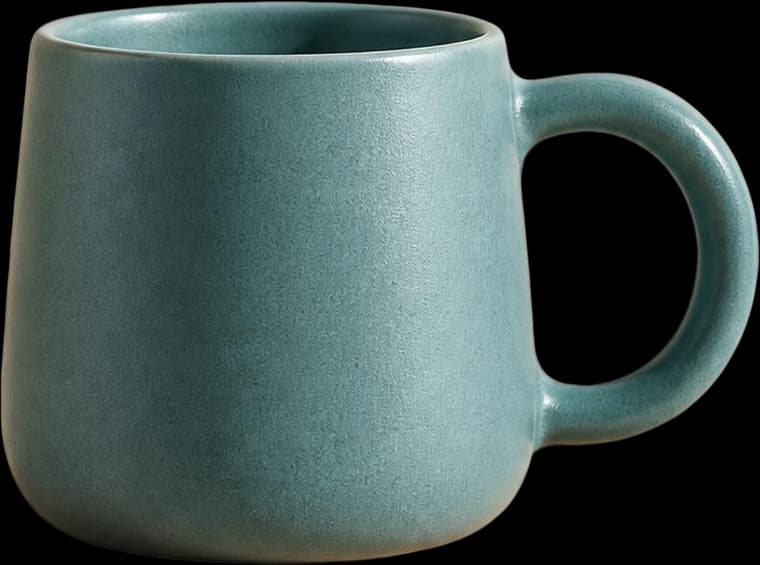
A ceramic mug, orange, leaf and plinth separated for a product composition. Inspect transparency and the reconstructed plinth edge.

These are actual AI results, not guaranteed outcomes. Details can change; a base image may still contain objects. Moving a layer can require cleanup. The character example is not a Live2D rig.
Frequently asked questions
Is AI layer separation the same as background removal?
No. A cutout isolates a subject, while layer separation attempts to create several independently editable raster elements. Neither task automatically recovers the original layered design or the true scene behind an object.
Which AI tool can separate objects into layers rather than just remove a background?
Png2Psd's Image to Layers workflow can infer several raster elements and export a layered PSD. Its separate Prompt Cutout workflow returns a PNG for a selected object. Inspect the public sample and choose according to the edit you need; output quality depends on the input.
Can I move a product without leaving a hole in its old position?
The result needs inspection. A base layer can still contain the product, or generated background details can differ from the source. You may need to remove duplicates and repair covered areas manually before using the new composition.
Does a transparent PNG give me multiple editable layers?
No. A PNG alpha channel describes visible transparency, not a Photoshop layer stack. A single cutout can be placed on a layer in an editor, but independently editable objects require additional source assets or inferred separation.